FAQ
Quick public answers about trials, pricing, plans, and the basics.
Read the FAQ →Three clear steps from account creation to your first game session.
New here? Create your account to begin your free trial, then confirm your email and open Account Status to choose your installation method.
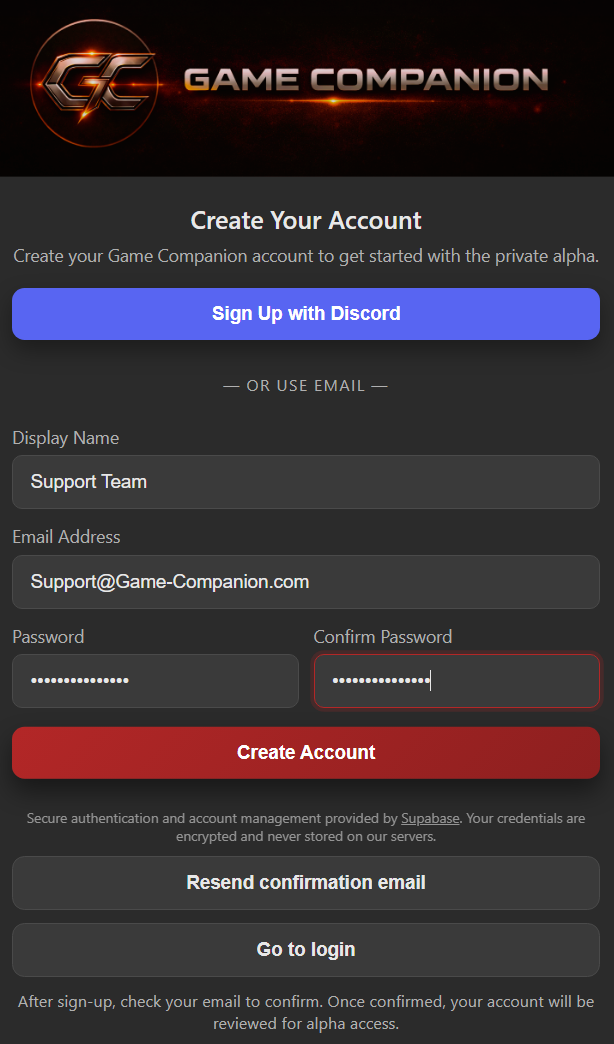
Start free trial Want double trial tokens? See below ↓Register with email and password or Discord. Your 30-day trial is created automatically with your account. Use the same sign-in method later in both the website and the desktop app.
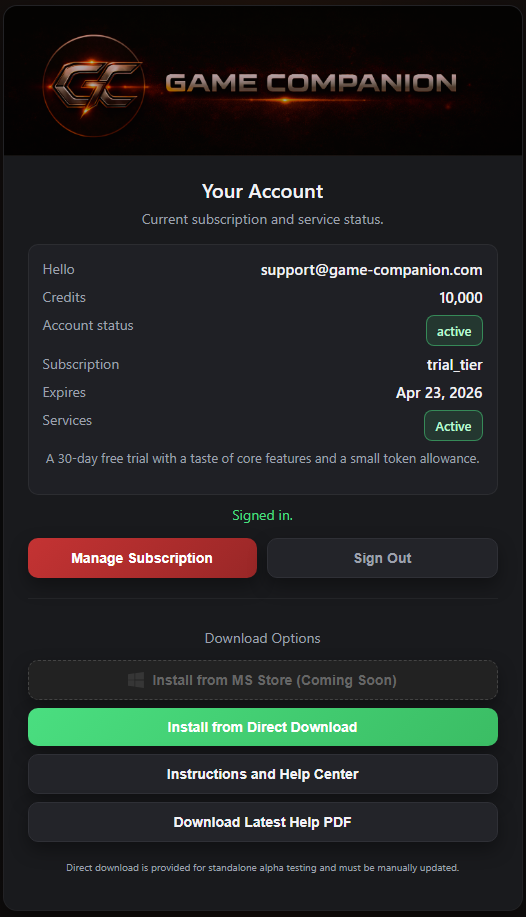
Confirm the email link or code, then open Account Status. Make sure Account Status and Services show Active, and your subscription shows Trial User. Choose either Direct Download or Microsoft Store there.
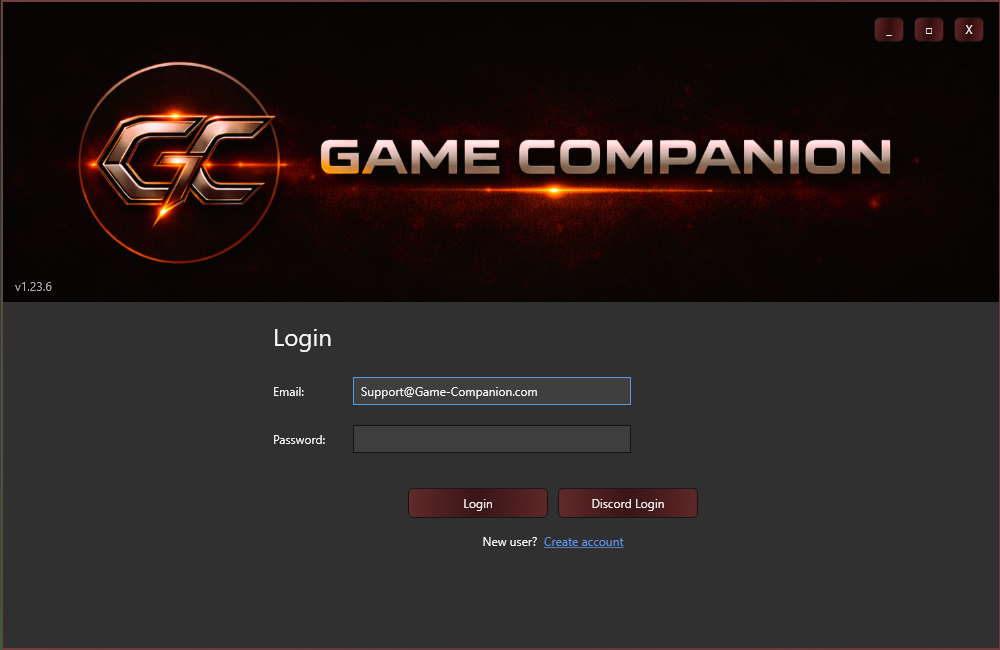
Launch the app and sign in with the method you registered. Your first session begins with a few quick game and microphone settings.
★ First-Launch Setup Tips
Visit Help Center →Quick public answers about trials, pricing, plans, and the basics.
Read the FAQ →Detailed, signed-in product instructions and the latest help package.
Open Help Center →Community discussion, feedback, announcements, and bug reports.
Join Discord →Use email for account-access or private support issues that should not go to Discord.
Email support →To receive the bonus, email support and include both: